How to build and upload on FanDuel
The whole trip from an empty contest to every entry updated on FanDuel, in nine steps. Every screenshot comes from a real run: a college football Saturday main slate, in a contest with 35,928 entries. That run used 150 lineups, but the steps are the same for 3, 20 or 150. Tap any screenshot to see it full size.
Before you start
Your entries in the contest
FanDuel only lets you edit entries that already exist, so enter the contest once for each lineup you plan to play. The quickest way, if the contest is a while from lock, is to pre-register: on the contest's entry screen, register without building a lineup and pick how many entries you want. How many is entirely your call, and it depends on how you play: one entry, five, or the contest limit all work the same way here. We are not suggesting you max out a contest. This guide happens to use 150 because that was the run we recorded. The upload in step 8 fills however many entries you have.
One warning: registering pays the entry fee up front. If you never set a lineup before lock, FanDuel does not give that fee back, so finish the upload before the contest starts.A members login
Yes, the lineup builder is a members tool. Shocking, we know. The guide itself is free, though, so read the whole thing first and you will know exactly what you are getting before you sign up. Every button named here is what you will see on the page, and the screenshots come from the live builder. Not a member yet? See what the DFS tools include.
Build and rank your lineups
Tell the builder what contest you are in, look at the field it expects you to face, then let the simulation rank lineups against that field.
-
Read your contest's numbers on FanDuel
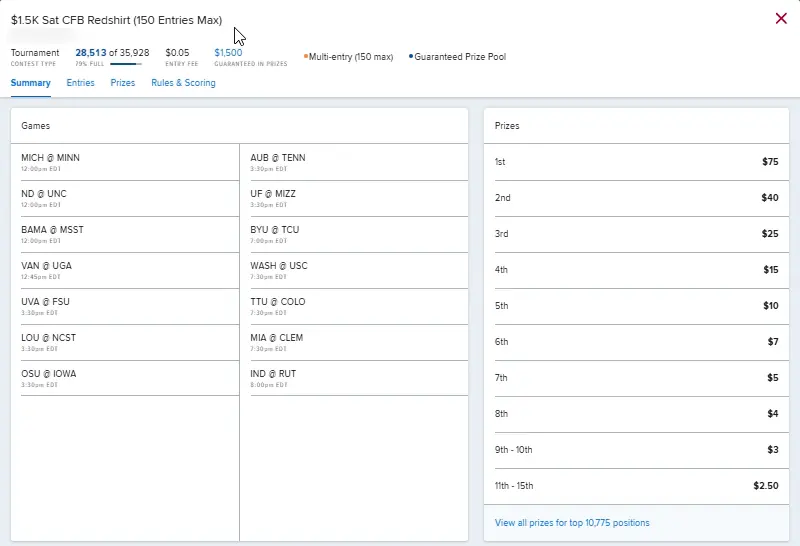
Open the contest on FanDuel and note three numbers: total entries (here 35,928), the entry fee, and how many places get paid (the View all prizes for top 10,775 positions link).
-
Set up the contest in the builder
Pick College football (or NFL, or NBA, which is in beta), FanDuel and your slate, then type Total entries, Entry fee ($) and Field paid (spots). Save contest keeps it for next time.
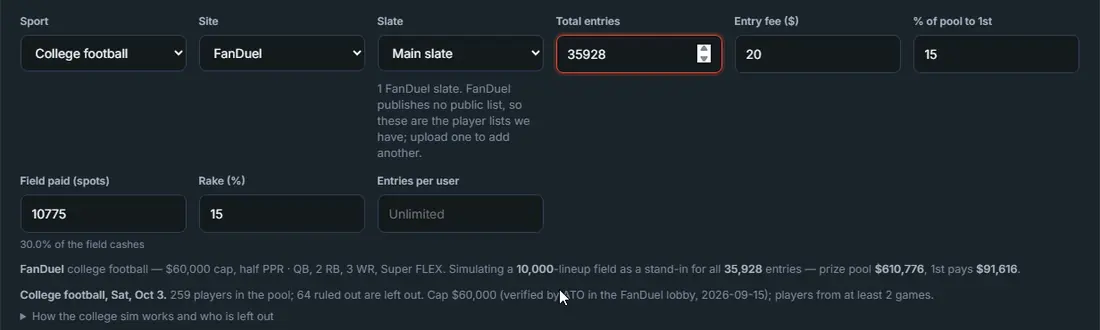
In this run only total entries and paid spots were changed. Type your real entry fee too: it sets the prize pool the ranking uses. -
Generate the field and read the ownership
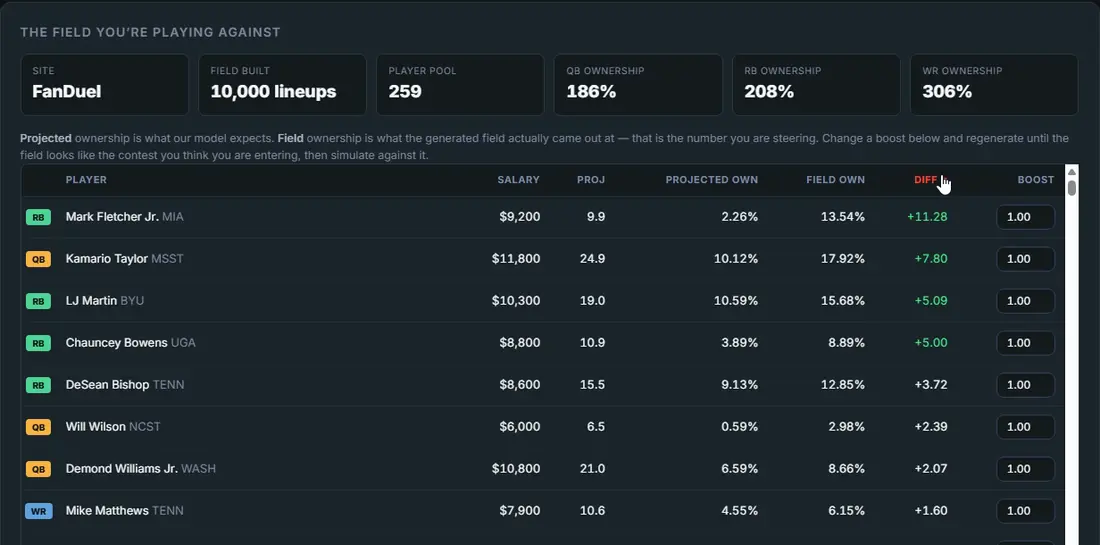
Press Generate field and open the Field tab. Projected own is what our model expects; Field own is what the generated field came out at. Sort by Diff to see the biggest gaps first.
-
Adjust boosts and regenerate
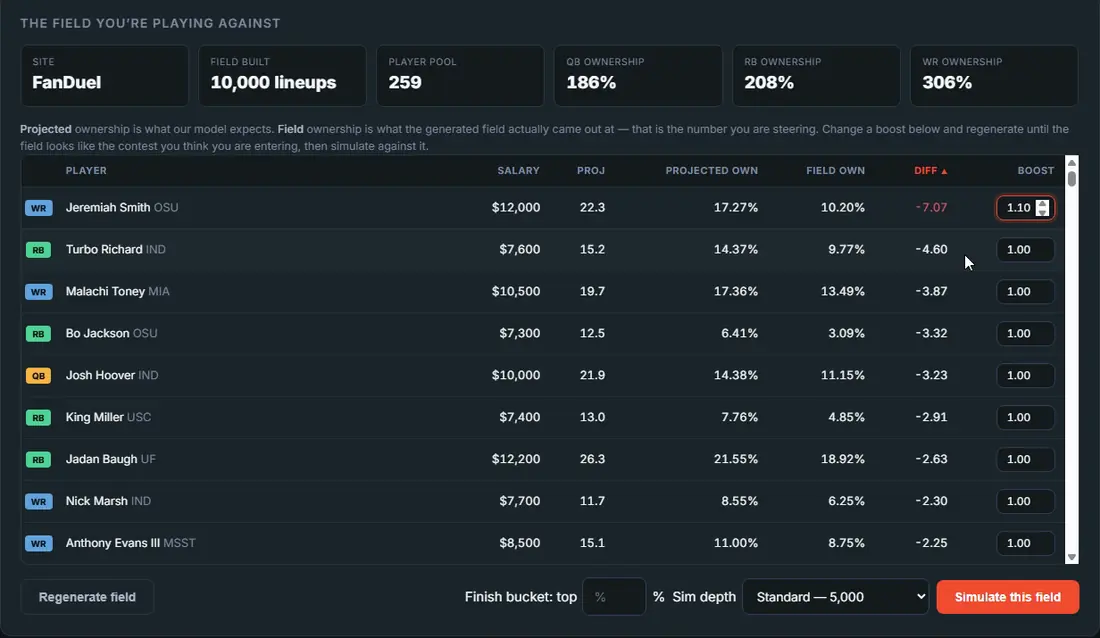
If you think the field will be on a player more or less than shown, change his Boost (1.00 leaves him alone, above 1 means more, below 1 means less) and press Regenerate field. Check Field own again and repeat until the field looks like your contest.
-
Simulate the field
Under the field table, leave Sim depth on Standard (5,000 sims) and press Simulate this field. Results land on the Lineups tab, ranked against that field.
Finish bucket is optional. Type a percentage, say 1, and the simulation also counts how often each lineup finishes in the top 1% of the contest. That adds a Top 1% rank column you can sort by, so you can rank lineups by the finish you care about (top 1% for a big tournament, or the paid share of the field, about 30% in this contest, to cash). Leave it blank and nothing changes.

-
Star the lineups you want
On the Lineups tab, star the lineups you want to enter. Click the star on any row, or set Star top to a number and press Star to star that many from the top. Starred lineups go to Favorites and stay put if you run again. Starring is optional: in step 7 you can also use the top lineups on your board without starring anything.
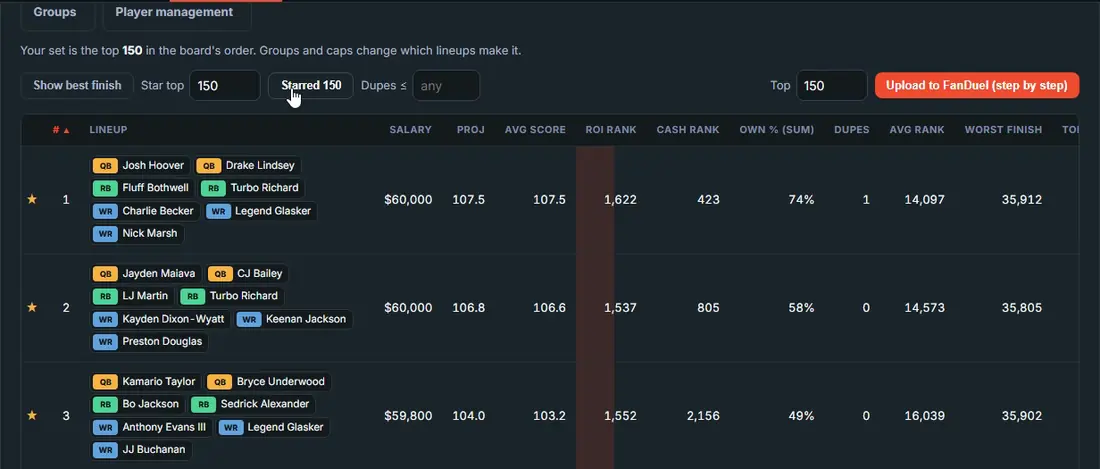
The fill button on the right now reads Fill FanDuel entries.
Put the lineups into your entries
FanDuel takes lineups through its own entries file. The builder fills it; you upload it on FanDuel's CSV Edit page.
-
Fill FanDuel's entries file in the Entry Manager
Get the entries file from FanDuel first: Upcoming, then CSV Edit, then download the template. Back in the builder, press Fill FanDuel entries to open the Entry Manager and load that file. It lists every contest you have entries in.
- Pick the lineups: My favorites (your starred lineups, selected by default when you have any) or Top N of my board.
- Fill your contests: Fill all contests, or + Add on just the ones you want. Two starred lineups for one small contest? Add them there and leave the rest alone.
- Press Download entry file. It saves a copy ending in -ato-filled.csv. Entries you left empty stay out of the file, so FanDuel keeps whatever they had.
Use the entries template, not the player list you used to load the slate: the player list has no entry IDs.
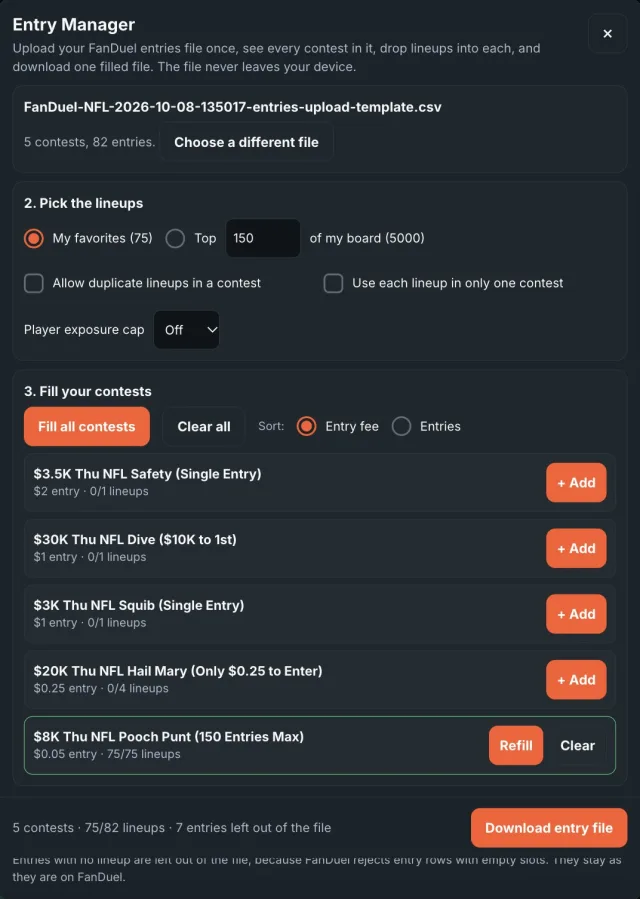
The Entry Manager after filling one contest. Each contest has its own Add button. -
Upload it with CSV Edit on FanDuel
On FanDuel go to Upcoming and press CSV edit (top right on the website, under the gear icon in the app). Press Choose File, pick the -ato-filled.csv file, then press the Edit 150 Entries button (it shows your own count).
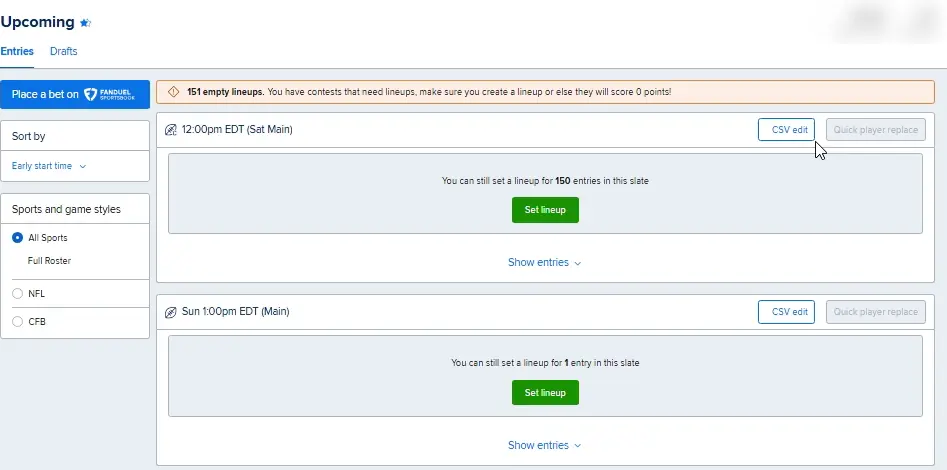
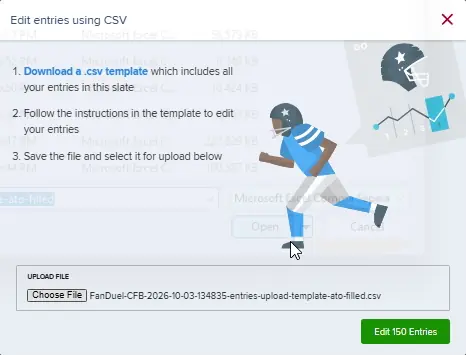
-
Refresh and check your lineups
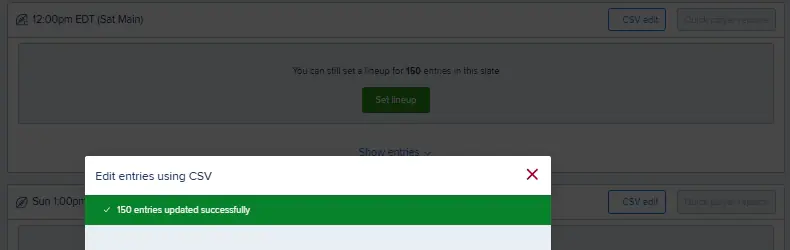
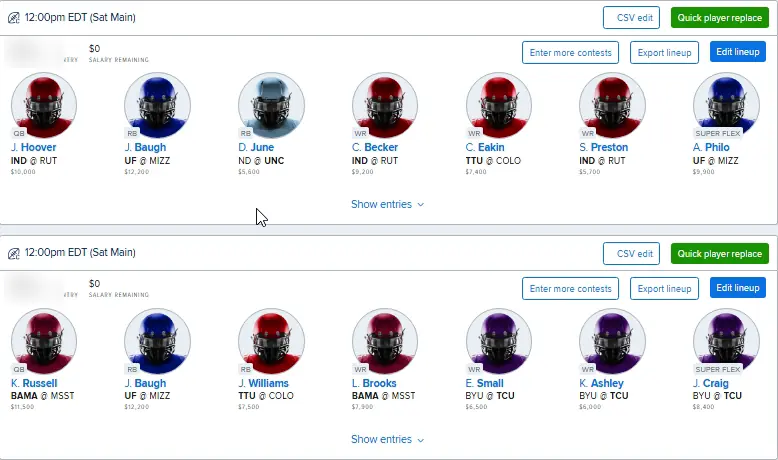
FanDuel confirms your entries were updated (here, 150 entries updated successfully). Refresh the page and every entry shows its new lineup.
Open the builder
Same nine steps every slate. New to DFS? Start with the free pages below.